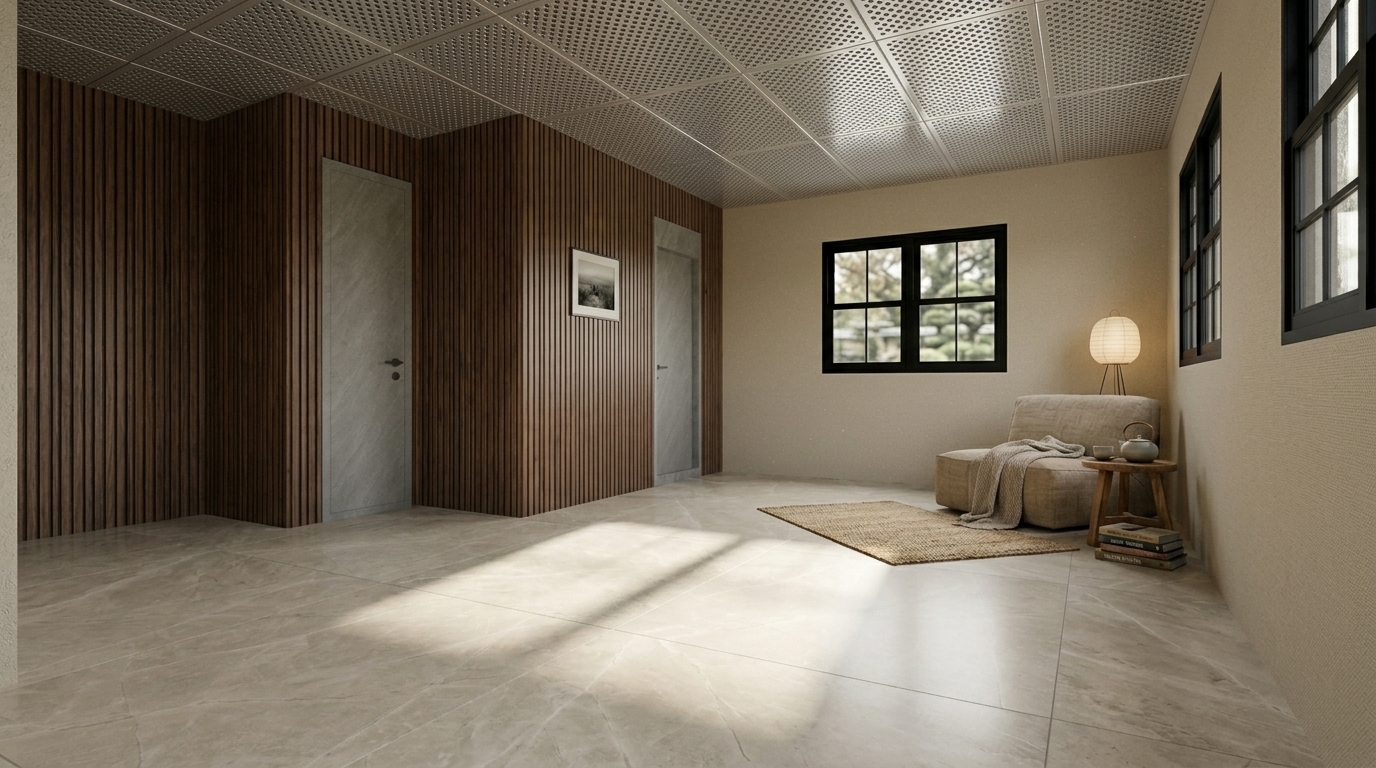
01
Keep the angle that works
If the render already works, keep it and narrow the finish area that needs comparison.
MATERIAL EDIT
Use material edit AI to test flooring, wall finishes, color, and lighting without remaking the image. Compare options in the scene your client already understands.
A sample image and element-level finishes are ready to try.
Choose an area on the left, switch the finish, then create a result.
How it works
If the render already works, keep it and narrow the finish area that needs comparison.
Test flooring, wall finish, color, and brightness directly inside the image.
Compare the original and revised render to choose the finish direction for the next proposal.
Practical guide
Keep the composition and compare flooring, wall finish, lighting, and other decisions in the actual scene.
Keep the angle and spatial feel, then change only the floor, wall, or color.
Choose the finish decision first, such as flooring, wall finish, ceiling, or window trim.
Color, maintenance, brightness, or premium feel can become the basis for choosing.
Compare wood, tile, carpet, and other floor directions in the same scene.
Change wallpaper, paint, or panel feel to rebalance the room.
Compare finish feedback from a meeting on top of the existing render.
Related features
FAQ